How do you Create a Credit Memo in Quickbooks Online
Step 2: Create the Credit Memo
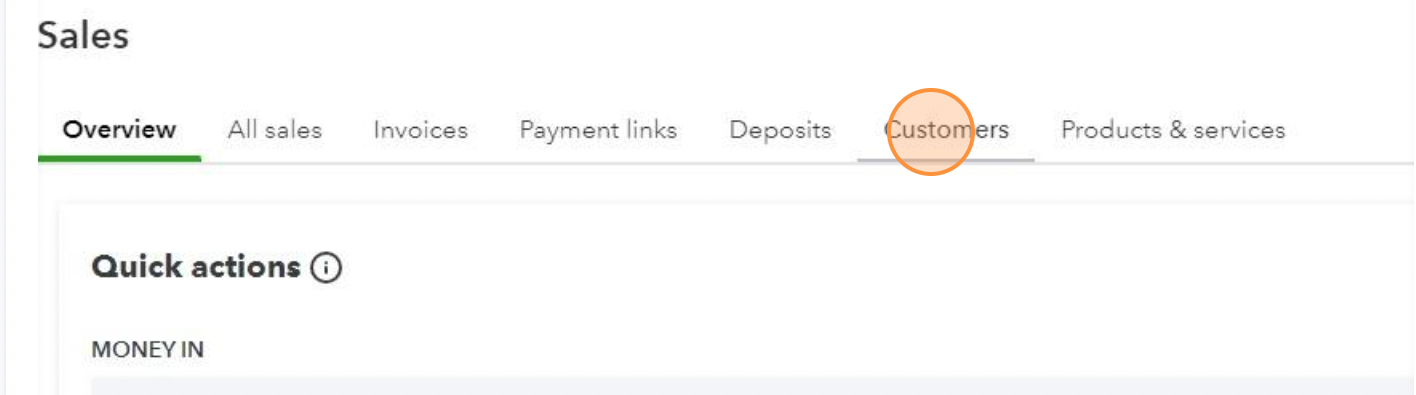
- Click on the 'Customers' tab. Here, you will see a list of all your customers.
- Choose the customer for whom you want to create a credit memo by clicking on their name.
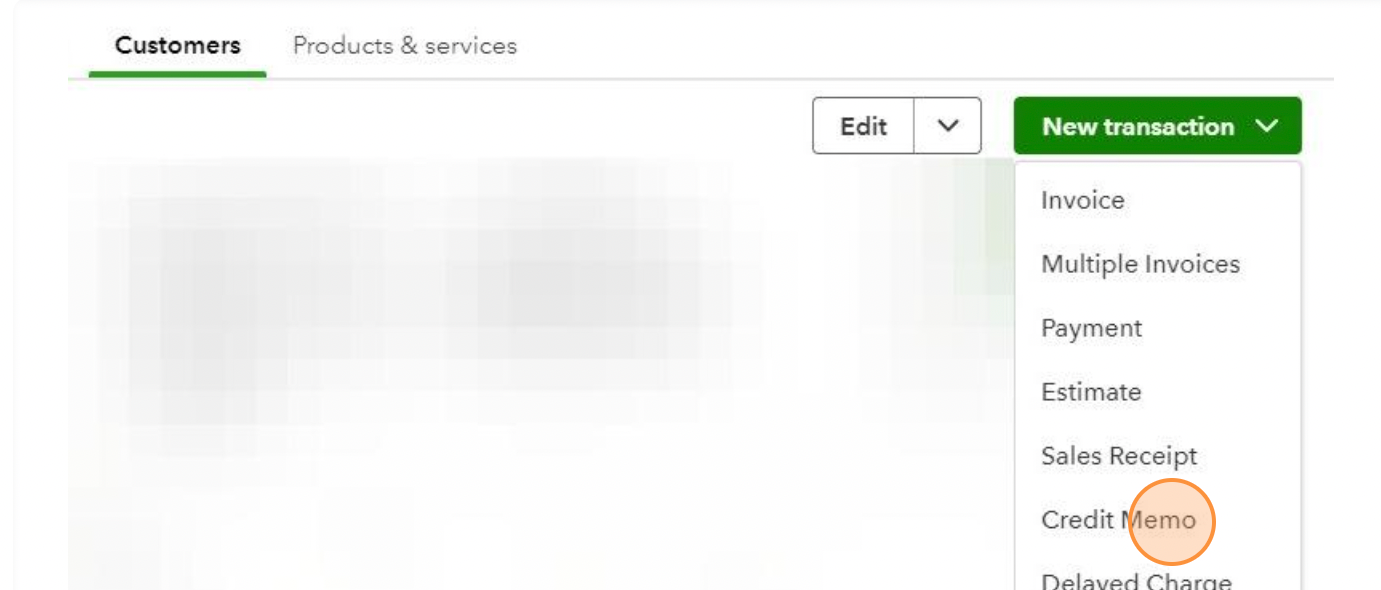
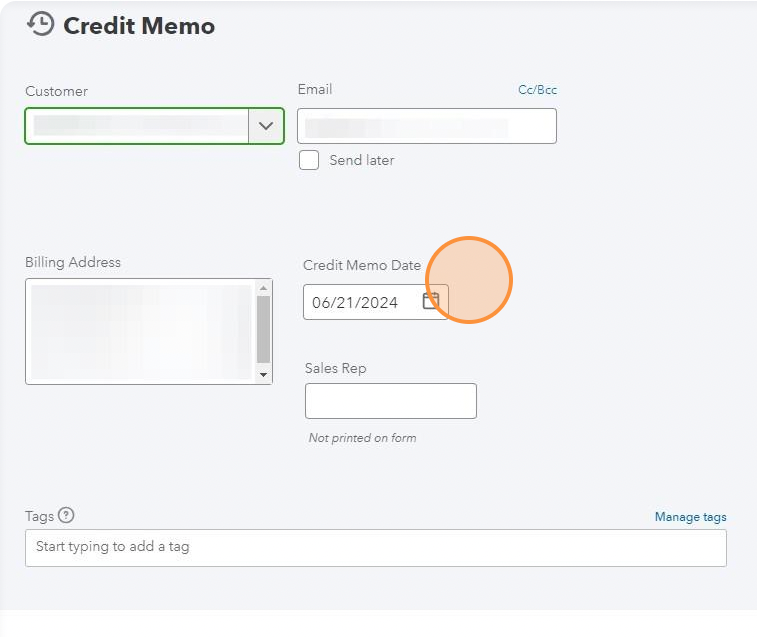
- Select 'New transaction' and choose 'Credit Memo' from the dropdown menu.

Step 3: Fill in the Credit Memo Details
- Enter the Credit Memo Date. Choose the date when the credit memo is being issued.
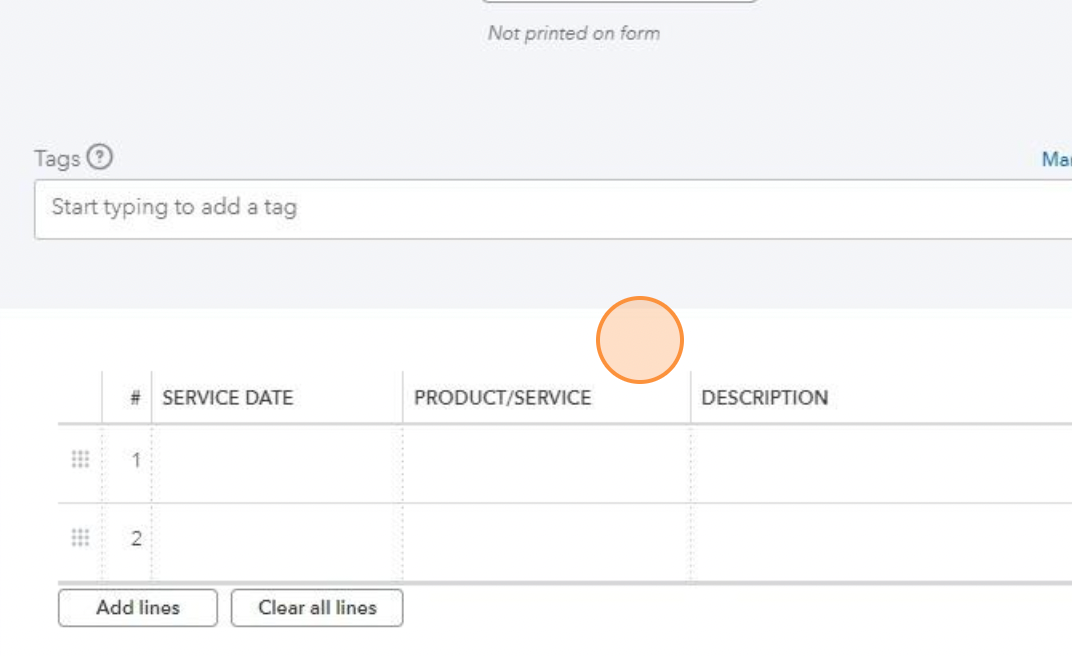
- Reference the Original Invoice (if applicable). If the credit memo is related to a specific invoice, include the invoice number for reference.
- Add Products/Services. Enter the products or services for which the credit memo is being issued. Adjust quantities and rates as needed.
- Adjust Amounts. If the credit memo is for a return or discount, adjust the amounts accordingly. QuickBooks will automatically calculate the new totals.
Step 4: Provide a Reason for the Credit Memo
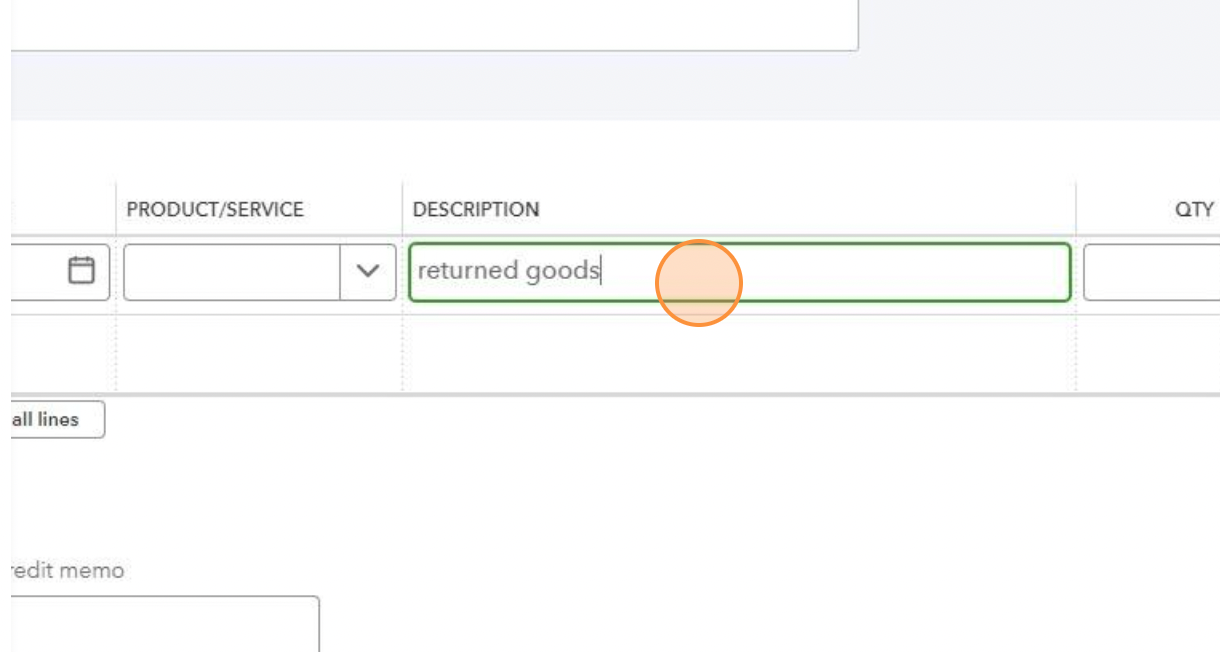
- Describe the Reason. It’s important for record-keeping to include a reason for the credit memo. Use the description field to detail why the credit memo is being issued, such as "returned goods" or "pricing adjustment."
Step 5: Review and Confirm
- Review the Credit Memo. Ensure all information is accurate: customer details, products/services, amounts, and reasons.
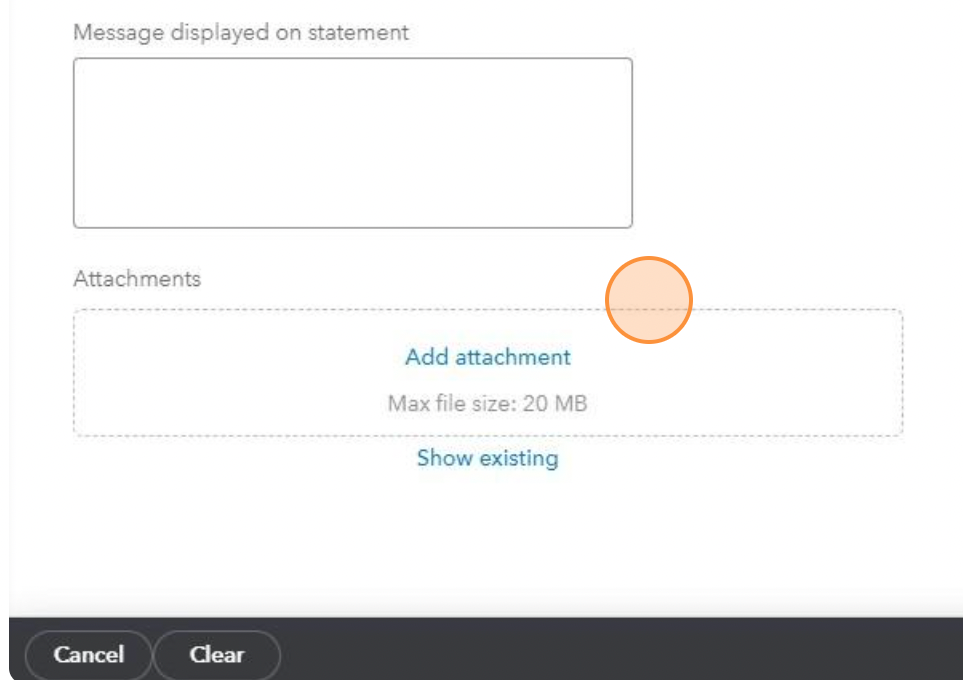
- Attach Any Relevant Documents. If you have related documents (e.g., return slips, emails agreeing to a discount), attach these to the credit memo record in QBO for future reference.
Step 6: Apply the Credit Memo to an Invoice or Refund
- Apply to an Open Invoice. If the customer has other open invoices, you can apply the credit memo to those invoices directly from the credit memo screen. Choose “Apply to an invoice” and select the invoice you want to apply it to.
- Issue a Refund. If there is no open invoice or you need to refund the customer, select “Refund” from the credit memo screen. You will need to enter additional details like the refund method and bank account used for the refund.
Step 7: Save and Send the Credit Memo
- Save the Credit Memo. Once all details are confirmed, save the credit memo.
- Send the Credit Memo to the Customer. You can email the credit memo directly from QBO to the customer for their records.

Step 8: Monitor the Credit Memo
- Keep Track of Applied Credits. Monitor your customer’s account to ensure that the credit memo is applied correctly and that all balances reflect the latest transactions.
- Review Financial Reports. Regularly check your financial reports to see how credit memos are affecting your overall financial situation.
By following these steps, you can effectively manage credit memos in QuickBooks Online, ensuring that your financial records are accurate and up-to-date. This will help maintain good customer relations and proper
accounting practices.
Key Takeaways
- Quick Access: Navigate to the 'Sales' menu and select 'Customers' to begin the process.
- Transaction Type: Use the 'New transaction' dropdown on a specific customer profile to select 'Credit Memo.'
- Essential Details: Ensure you include the original invoice reference, product/service details, and a clear reason for the credit.
- Application: Credit memos can be applied directly to open invoices or processed as cash refunds.
- Final Step: Always save and email the memo to the customer to maintain transparent financial records.

Frequently Asked Questions About Credit Memos in QuickBooks Online
What is a credit memo in QuickBooks Online used for?
A credit memo in QuickBooks Online is used to reduce or offset a customer’s balance. It’s commonly issued for returned products, overpayments, billing errors, or agreed-upon discounts. The credit can be applied to an open invoice or refunded directly to the customer.
Can a credit memo be applied to an existing invoice in QBO?
Yes. Once a credit memo is created, you can apply it to any open invoice for that customer directly from the credit memo screen. This automatically updates the invoice balance and keeps customer accounts accurate.
What happens if a customer doesn’t have an open invoice?
If there’s no open invoice, the credit memo remains as a credit on the customer’s account or can be issued as a refund. QuickBooks Online allows you to select a refund method and bank account to properly record the transaction.
What are the benefits of using an accounting calendar?
Using an accounting calendar improves financial accuracy, enhances cash flow planning, and ensures compliance with tax regulations. It also increases accountability among business stakeholders by clearly outlining reporting and filing deadlines.
Does creating a credit memo affect financial reports?
Yes. Credit memos affect revenue and accounts receivable, so they appear in reports such as the Profit & Loss and Accounts Receivable Aging. Reviewing these reports regularly helps ensure your books stay accurate and up to date.
Other Blogs Related to Small Business Accounting